Dictate Code on Your Mac - Try Whisper Dictation
System-wide voice-to-text that works in Cursor, VS Code, Terminal & every coding tool. 100% local, 100% private.
Why Voice Dictation + AI Coding Is a Game-Changer
The rise of AI-assisted coding tools like Cursor, Claude Code, and OpenAI Codex has shifted how developers work. Instead of writing every line of code manually, you now describe what you want in natural language, and the AI generates the code for you.
Here's the thing most people miss: these tools are powered by natural language prompts. You're essentially writing English sentences to produce code. And what's the fastest way to produce natural language? Speaking.
Combining voice dictation with AI coding tools gives you a powerful workflow:
- 3-4x faster prompt input - The average person types at 40 WPM but speaks at 150 WPM. When your AI coding tool needs detailed instructions, speaking is dramatically faster.
- More detailed prompts - When typing feels slow, developers write terse prompts. When speaking is easy, you naturally give more context, which produces better code.
- Reduced RSI and fatigue - Coding for 8+ hours strains your wrists and hands. Voice input lets you rest your hands while staying productive.
- Better for complex explanations - Describing a multi-step algorithm or architecture decision is often easier to articulate verbally than to type out.
- Accessibility - Developers with hand injuries, carpal tunnel, or other conditions can continue coding effectively.
This isn't science fiction. Developers are already using this workflow daily. Let's see how to set it up.
How Voice Dictation Works With AI Coding Tools
The workflow is simple and elegant:
- You speak - Describe what you want in plain English. For example: "Create a React component that fetches user data from the API and displays it in a sortable table with pagination."
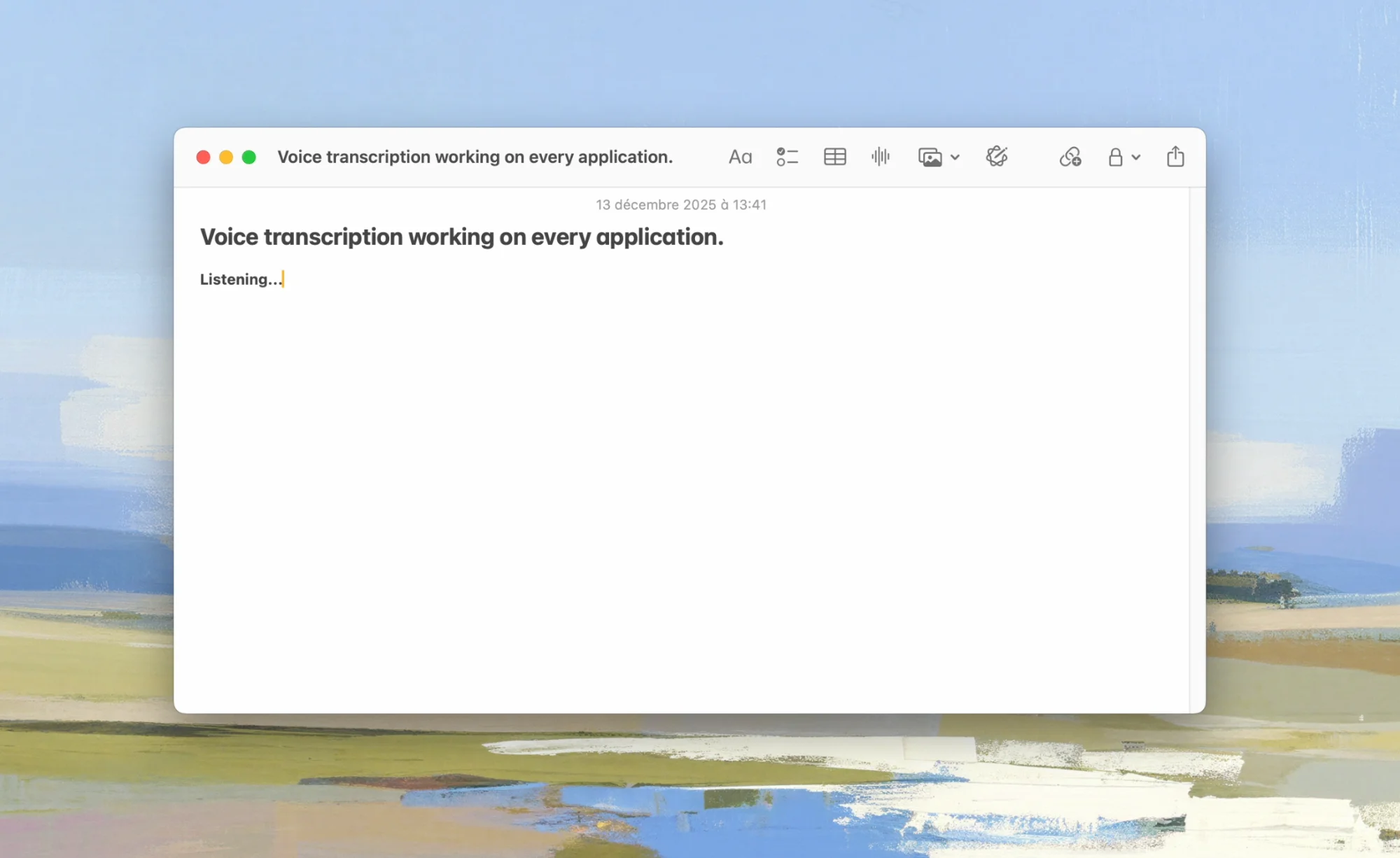
- Whisper Dictation converts your speech to text - Using OpenAI's Whisper AI model running locally on your Mac, your words are transcribed with high accuracy - including technical terms.
- The text appears in your AI coding tool - Because Whisper Dictation works at the system level, the transcribed text is typed directly into whatever app is focused: Cursor's chat, Claude Code's terminal, VS Code's Copilot panel, etc.
- The AI generates code - Your AI coding assistant receives the detailed prompt and generates the code.
The key insight is that Whisper Dictation acts as a system-wide input method. It doesn't need special integration with each IDE - it types text into any active application, just like a keyboard. This means it works with every AI coding tool, current and future.
AI Coding Tools That Work With Voice Dictation
Here's how the major AI coding tools work with voice dictation input:
| AI Coding Tool | Voice Input Method | Best Use Case | Voice Dictation Compatibility |
|---|---|---|---|
| Cursor | Chat panel, Cmd+K, inline edit | Full IDE with AI built-in | Excellent - all input fields work |
| Claude Code | Terminal prompt | CLI-based agentic coding | Excellent - terminal input works |
| OpenAI Codex | Chat interface, terminal | Cloud-based AI agent | Excellent - text input compatible |
| GitHub Copilot | Inline suggestions, chat | Code completion & chat | Excellent - works in VS Code |
| Windsurf | Chat, inline commands | AI-native IDE | Excellent - same as Cursor |
| Aider | Terminal prompt | CLI pair programming | Excellent - terminal compatible |
Since Whisper Dictation works as a system-level input, it's compatible with every coding tool on macOS. No plugins, no extensions, no configuration needed per tool.
Setup Guide: Voice Dictation for Your IDE
Step 1: Install Whisper Dictation
Download Whisper Dictation from the link below. It installs as a native Mac app and runs entirely on your machine - no cloud processing, no account needed.
Step 2: Choose Your Whisper Model
For coding, we recommend the Large model for the best accuracy on technical vocabulary. If you have an M1/M2/M3/M4 Mac with 16GB+ RAM, it runs smoothly. For Macs with 8GB RAM, the Medium model is a good balance.
Step 3: Set Your Hotkey
Configure a keyboard shortcut that doesn't conflict with your IDE. Good options include:
- Right Option key - Easy to reach, rarely used by IDEs
- Fn key double-tap - Doesn't conflict with anything
- Custom shortcut - Choose any combo that works for your workflow
Step 4: Start Dictating
Open your AI coding tool, press your hotkey, and speak your prompt. The transcribed text appears directly where your cursor is. That's it.
Get Started With Voice Coding Today
Whisper Dictation works with every AI coding tool on Mac. One-time purchase, no subscription.
Download Whisper DictationUsing Voice Dictation in Cursor
Cursor is one of the most popular AI-native IDEs, and every one of its AI surfaces - the Chat panel, Cmd+K inline editing, and Composer's multi-file mode - is driven by natural language prompts. That makes all of them ideal targets for voice input: press your hotkey, speak your instruction, and the transcribed text lands wherever your cursor is focused.
We've written a dedicated, step-by-step guide covering hotkey configuration that avoids Cursor's shortcuts, per-feature workflows, and troubleshooting. If Cursor is your main editor, start there: learn how to dictate in Cursor with the complete setup guide.
Using Voice Dictation With Claude Code
Claude Code is Anthropic's CLI-based agentic coding tool. It runs in your terminal and can autonomously read files, write code, run tests, and make git commits. It's extremely powerful for complex coding tasks.
Why Voice Works Great With Claude Code
Claude Code's strength is handling complex, multi-step instructions. The more context you provide, the better it performs. Voice dictation lets you give rich, detailed instructions like:
"I need you to refactor the authentication module. Currently it uses JWT tokens stored in localStorage, but we need to migrate to HTTP-only cookies for better security. Update the auth middleware, the login and logout endpoints, and the frontend auth context. Make sure existing sessions are handled gracefully during the migration."
That kind of detailed prompt takes 30 seconds to speak but over a minute to type. And when typing, most developers would write a shorter, less helpful version.
Terminal Compatibility
Since Whisper Dictation works at the system level, it types directly into your terminal app (Terminal, iTerm2, Warp, or any other). Just activate Claude Code, press your dictation hotkey, speak your instruction, and let Claude Code work.
Claude Code Now Has Built-In Voice - Do You Still Need a Dictation App?
In 2026, Claude Code added a native /voice mode that lets you speak prompts directly in the terminal. It's convenient, but it comes with documented constraints: it requires signing in with a Claude.ai account, is unavailable when authenticating via API key, Amazon Bedrock, or Google Vertex, streams your audio to Anthropic's servers for transcription, and doesn't work over SSH or in remote sessions.
A local dictation app has none of those limits - it works with any auth method, any terminal, offline, and your audio never leaves your Mac. It also covers every other tool you use, not just Claude Code. We break down the full comparison in our guide to voice dictation for Claude Code: native /voice vs local apps.
Using Voice Dictation With OpenAI Codex
OpenAI Codex (the coding agent, not the older API) is OpenAI's agentic coding tool that can execute tasks in a cloud sandbox. It accepts natural language prompts to build features, fix bugs, and handle complex refactoring.
Voice + Codex Prompts
Codex shines with detailed task descriptions. Voice dictation lets you describe exactly what you need built without the friction of typing. Whether you're using Codex through the ChatGPT interface, the API, or a CLI tool, Whisper Dictation's system-wide input works seamlessly.
The Prompt Quality Advantage
Research shows that longer, more specific prompts consistently produce better results from AI coding agents. Voice dictation removes the barrier that causes developers to write minimal prompts. When speaking is effortless, you naturally say things like "and also make sure to handle the edge case where the user hasn't set up their profile yet" - details you'd skip when typing.
Tips for Better Voice-to-Code Results
1. Speak in Natural Language, Not Code Syntax
Don't try to dictate raw code syntax. Instead, describe what you want the code to do. Say "Create a function that takes an array of numbers and returns the average, excluding any null values" rather than trying to dictate the syntax character by character.
2. Use the Large Whisper Model for Technical Terms
The Large Whisper model handles technical vocabulary much better than smaller models. It correctly recognizes terms like "useState", "async/await", "PostgreSQL", "REST API", and framework names.
3. Structure Complex Prompts With Pauses
For multi-part instructions, pause briefly between sections. This helps both the transcription accuracy and the AI's understanding of your request. Think of it like using paragraph breaks in writing.
4. Reference Files and Functions by Name
AI coding tools work best when you reference specific files and functions. Voice dictation handles this well - just say "in the user controller dot ts file, update the get user by ID function" and the AI knows exactly where to look.
5. Review Before Sending
After dictating, take a second to scan the transcribed text before pressing Enter. Whisper Dictation is highly accurate, but a quick visual check ensures your prompt is exactly right.
6. Combine Voice and Keyboard
The most productive workflow combines both: dictate the bulk of your prompt by voice, then use the keyboard for quick edits or to add specific technical details. This hybrid approach gives you the best of both worlds.
Want to go deeper? See our guides on vibe coding with voice and our tested comparison of the best voice-to-text for developers.
Frequently Asked Questions
Can I use voice dictation to write code?
Yes. With Whisper Dictation and AI coding tools like Cursor, Claude Code, or OpenAI Codex, you speak your instructions in natural language, and the AI generates the actual code. You're dictating prompts, not syntax - which is faster and more natural.
What is the best voice dictation tool for coding on Mac?
Whisper Dictation is the top choice for developers on Mac. It works system-wide (inside any IDE, terminal, or browser), processes everything locally for privacy, and uses OpenAI's Whisper AI model for high accuracy on technical vocabulary. One-time purchase, no subscription.
Does voice dictation work with Cursor IDE?
Yes. Whisper Dictation works at the macOS system level, so it types into any application including Cursor IDE. You can dictate into Cursor's chat panel, Cmd+K input, inline edit boxes, and the Composer - anywhere you'd normally type.
Can I dictate code privately without sending audio to the cloud?
Yes. Whisper Dictation processes all audio locally on your Mac using the Whisper AI model. Your voice data never leaves your device, making it ideal for developers working on proprietary or confidential codebases.
Does voice dictation slow down my coding workflow?
The opposite. Most developers find that voice input is 3-4x faster than typing for AI prompts. You also write better, more detailed prompts when speaking, which means the AI generates better code on the first attempt.
Ready to Code With Your Voice?
Whisper Dictation is a dictation app for Mac that works with Cursor, Claude Code, Codex, and every other tool. One-time $9.99, 10 free transcriptions to try.
Get Whisper Dictation